

Instant Meshes: The Complete Guide to Automatic Remeshing for 3D Artists
Introduction
If you have ever sculpted a detailed 3D model and then faced the nightmare of turning it into something usable in a game engine or animation rig, you already know why remeshing tools matter. Sculpted meshes are dense, messy, and often unworkable for production pipelines. Getting a clean, evenly distributed mesh from a high-poly sculpt used to require hours of manual work.
Instant Meshes changes that. It is a free, open-source tool that takes a dense or irregular mesh and automatically generates a clean quad-dominant or pure quad mesh from it. It is fast, surprisingly accurate, and used by 3D artists across game development, visual effects, animation, and digital sculpting. This guide explains what it does, how to use it effectively, and where it fits in a real production workflow.

What Are Instant Meshes?
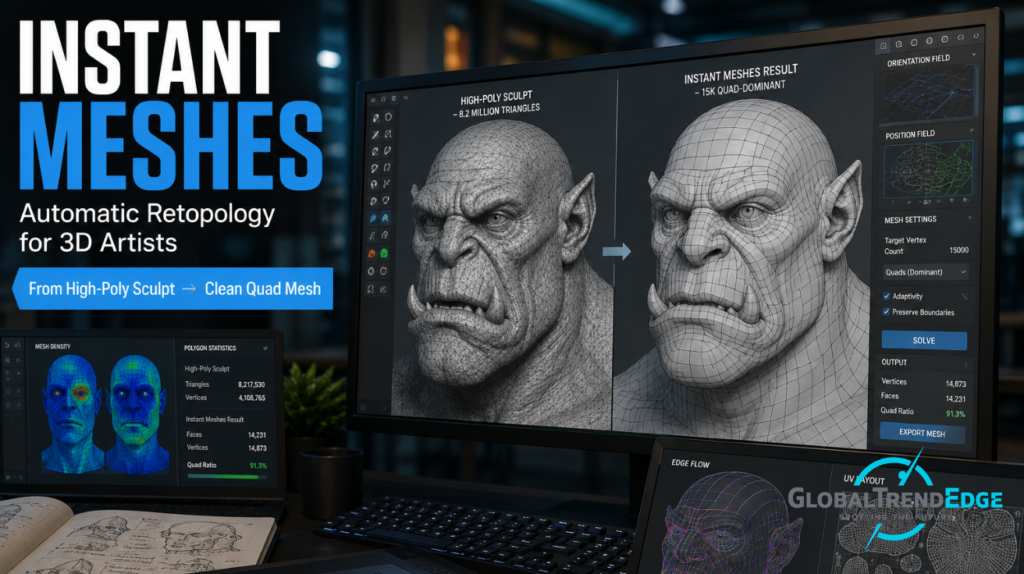
Instant Meshes is an interactive meshing tool developed by researchers at ETH Zurich and published in 2015 as part of a SIGGRAPH paper titled “Instant Field-Aligned Meshes.” The tool takes an input mesh, which can be a high-poly sculpt, a scan, or any dense triangulated surface, and produces a new mesh with clean, evenly spaced quads that follow the natural flow of the surface.
The underlying technology is built around orientation and position fields that guide where edge loops and quad faces should go. Unlike simple decimation or remeshing tools that just reduce polygon count, Instant Meshes tries to understand the shape’s curvature and generate topology that flows logically across the surface.
The result is a mesh that is far easier to work with in animation software, game engines, or any pipeline that expects clean edge flow.
Why Remeshing Matters in 3D Workflows
To understand why Instant Meshes is useful, it helps to understand the problem it solves.
The Problem with Sculpted Meshes
When artists sculpt in tools like ZBrush, Blender’s Sculpt Mode, or Mudbox, the geometry produced is typically composed of millions of small triangles. These triangles are distributed wherever the sculpting tool added detail, not where the mesh logically needs edge loops for deformation or animation.
A face sculpt, for example, might have millions of triangles packed into the nose and lips while large flat areas of the forehead are comparatively sparse. The topology has no consistent flow. You cannot rig it cleanly. Texture seams are difficult to manage. Importing it directly into a game engine would create performance problems.
Why Quads Matter
Quad faces, four-sided polygons, are the standard in production 3D for several important reasons. They deform predictably when animated. They subdivide cleanly. They support edge loop-based modeling techniques. Most professional rigging and shading workflows assume quad topology.
Triangles are fine for final export to game engines, where everything is ultimately triangulated by the engine anyway. But for the working mesh that artists animate, rig, and texture, quads are strongly preferred.
What Retopology Is
Retopology is the process of rebuilding a mesh’s surface with clean, intentional topology, usually over a high-poly sculpt used as a reference. Traditionally this is done manually in software like Blender, Maya, or 3ds Max by placing individual quads one at a time over the sculpt’s surface.
Manual retopology is slow. A character head might take an experienced artist several hours to retopologize properly. Instant Meshes automates most of this process in seconds or minutes.
How Instant Meshes Works
Instant Meshes uses two mathematical fields to guide its output: an orientation field and a position field.
Orientation Fields
The orientation field determines which direction the edges of the output mesh should flow across the surface. This is the part that makes Instant Meshes different from simple remeshing. The tool analyzes the curvature of the input surface and uses it to guide edge direction. On a face, for example, edge flow tends to follow the curves of the cheekbones and orbital areas naturally.
Artists can also manually guide this field using brush tools inside the application. If the automatic result flows incorrectly in a particular area, the user can paint orientation strokes to steer it.
Position Fields
The position field determines where the actual vertices of the output mesh should be placed. This controls the density and distribution of polygons across the surface. Combined with the orientation field, it determines the final shape of the quad grid.
The Output Mesh
The final mesh produced by Instant Meshes is quad-dominant, meaning most faces are quads with a small number of triangles or n-gons appearing where the geometry cannot be perfectly resolved into quads. For many applications this is completely acceptable. For strict animation or subdivision workflows, some additional manual cleanup may be needed, but the starting point is dramatically cleaner than anything you would build from scratch manually.
Getting Started with Instant Meshes
Downloading and Installing
Instant Meshes is free and open-source. The source code and prebuilt binaries for Windows, macOS, and Linux are available on GitHub at github.com/wjakob/instant-meshes. No installation is required for the binary versions. Simply download and run.
The interface is minimal and intentionally straightforward. It is not a full 3D suite and does not try to be.
Importing Your Mesh
Instant Meshes accepts common mesh formats, including OBJ and PLY. Export your sculpt from ZBrush, Blender, or your sculpting tool of choice in one of these formats before importing.
A few practical notes on input mesh preparation:
The input does not need to be perfectly clean, but obvious holes or non-manifold geometry can cause problems. If your sculpt has significant issues, basic cleanup in your primary software first will save headaches.
Resolution of the input matters. Instant Meshes works with the surface information it is given. A very low-res input produces a low-quality orientation field. For best results, use a medium or high subdivision level of your sculpt rather than the absolute maximum, which would be unnecessarily slow to process.
Setting Target Face Count
The main parameter you will adjust is the target number of faces or vertices for the output mesh. This slider controls how dense the output mesh will be.
For game characters, common targets range from a few thousand to roughly 10,000 to 20,000 faces depending on the platform and role of the character. For subdivision surface models intended for animation or film, a lower count with clean topology is preferable since the mesh will be subdivided later.
There is no single right answer. The target depends entirely on your pipeline’s requirements.
Using Orientation Strokes
This is the feature that separates a decent Instant Meshes result from a great one. After loading your mesh, you can switch to the orientation field view and paint strokes onto the surface to guide edge flow.
For a human face, common stroke placements include around the eyes to establish orbital edge loops, around the mouth to establish lip flow, and down the nose bridge. These strokes tell the tool that you want edge loops to circle these features rather than run across them.
Even a few carefully placed strokes can significantly improve results in areas where the automatic analysis gets confused, typically around high-curvature features or areas with complex curves meeting at angles.
Solving and Extracting
Once you are satisfied with the orientation field, clicking Solve generates the position field and produces the output mesh. This process typically takes a few seconds to a couple of minutes depending on input complexity and target resolution.
The mesh can then be exported as OBJ for import into your main application.
Instant Meshes in Real Production Workflows
With ZBrush
The most common use case is ZBrush to Instant Meshes to Maya or Blender. The sculptor creates a detailed high-poly model in ZBrush, exports a medium-subdivision version as OBJ, runs it through Instant Meshes to get clean topology, and then imports the result into their animation or rigging software.
The high-poly detail is preserved separately and can be baked as a normal map onto the retopologized mesh.
With Blender
Blender users can use Instant Meshes as an alternative to Blender’s built-in Remesh modifier or the manual retopology workflow. The process is the same: export from Blender’s sculpt mode, process in Instant Meshes, and import the result back into Blender. Blender’s Shrinkwrap modifier can then be used to snap the retopologized mesh precisely to the original sculpt’s surface.
With 3D Scans
Photogrammetry and 3D scan data are notoriously messy. Scan meshes are typically triangulated with irregular density and noise. Instant Meshes handles scan data well, producing clean quad meshes from surfaces that would take days to retopologize manually. This makes it genuinely useful beyond just the sculpting workflow.
With Game Development
For game asset pipelines, Instant Meshes provides a quick way to get production-ready mesh topology from sculpted or scanned assets. The output mesh can be refined in any modeling package before UV unwrapping, baking, and texturing.
Limitations and Honest Observations
Instant Meshes is excellent at what it does, but it has real limitations worth understanding before you rely on it.
The output is not always perfect. Complex areas like hands, ears, and facial features often need manual cleanup after processing. The tool does not understand semantic anatomy. It follows curvature mathematically, which is not always the same as what an experienced retopologist would do by hand.
It does not handle hard-surface models especially well. The tool is designed for organic surfaces. For mechanical objects with sharp edges and flat panels, dedicated hard-surface modeling tools or manual retopology remain preferable.
The interface is minimal to the point of being sparse. There is no undo history beyond a single step. The controls are functional but not polished in the way a commercial application would be. For first-time users this can feel limiting.
The project’s development appears to have slowed significantly since its initial release. As of the time this article was written, the GitHub repository has not seen major updates in several years. The tool still works well, but users should not expect ongoing feature development or active support.
Despite these limitations, for organic surface remeshing in a free tool, Instant Meshes remains one of the best options available.
Alternatives to Instant Meshes
Several other tools address the same general problem.
ZRemesher, built into ZBrush, is a strong alternative for ZBrush users. It produces comparable or sometimes better results for character work and is tightly integrated into the ZBrush workflow. It is not free since it requires a ZBrush license.
Blender’s Remesh modifier and the QuadRemesher add-on (commercial) are options within Blender. QuadRemesher in particular produces high-quality results and is widely used professionally, though it costs money.
ReMesh in Autodesk software tools provides similar functionality within those ecosystems.
For users who want the best possible automatic retopology and have a budget for it, QuadRemesher is generally considered the current commercial benchmark. For users who need a free solution and are comfortable with some manual cleanup, Instant Meshes is still a solid choice.
Key Takeaways
Instant Meshes is a free, open-source automatic retopology tool that converts dense or irregular meshes into clean quad-dominant meshes.
It was developed by researchers at ETH Zurich and released in connection with a 2015 SIGGRAPH paper on field-aligned meshing.
The tool is most useful for organic surface meshes from sculpts or scan data. It is less suited to hard-surface geometry.
Manual orientation strokes significantly improve results in complex areas like faces or hands.
It has real limitations, including imperfect output in complex areas, a minimal interface, and limited ongoing development.
Free alternatives include Blender’s built-in remeshing tools. Commercial alternatives like ZRemesher and QuadRemesher offer more polished results for users with a budget.
FAQ
Is Instant Meshes completely free? Yes. It is open-source and free to download and use for any purpose, including commercial projects. The source code is available on GitHub under an open-source license.
What file formats does Instant Meshes support? It accepts OBJ and PLY as input and outputs OBJ. These are among the most universal 3D file formats, so compatibility with other software is generally not an issue.
How long does processing take? For typical sculpts processed at moderate target resolutions, a few seconds to a couple of minutes is normal. Very dense inputs or very high target resolutions take longer, but the tool is generally fast by retopology standards.
Can I use instant meshes for game-ready assets? Yes. The output mesh will typically need UV unwrapping, normal map baking, and sometimes light manual cleanup, but as a starting point for game assets it works well. Most game pipelines that start from sculpts involve some version of this workflow.
Does Instant Meshes work on macOS and Linux? Yes. Prebuilt binaries are available for Windows, macOS, and Linux on the GitHub releases page.
Is there a way to get pure quads rather than quad-dominant output? Instant Meshes has a pure quad output option in its settings. However, achieving perfectly clean pure quad output across all areas of a complex organic mesh is mathematically difficult. Some triangles or n-gons may still appear in complex curvature areas. The pure quad mode reduces these but rarely eliminates them entirely.
Is Instant Meshes still being developed? Active development appears to have stalled as of recent years. The tool is functional and stable but should not be expected to receive new features or frequent updates. The GitHub repository is still accessible, and the existing release builds continue to work.
How does Instant Meshes compare to ZRemesher? For ZBrush users with a license, ZRemesher generally produces slightly better results out of the box, particularly for character faces, and integrates more smoothly into the ZBrush workflow. Instant Meshes is the stronger choice for users without ZBrush access or who need a free standalone solution.
Conclusion
Instant Meshes earned its place in 3D production pipelines by solving a genuinely hard problem quickly and for free. Automatic retopology that produces workable quad topology is something artists used to spend entire working sessions doing by hand. Running that same mesh through Instant Meshes and getting a usable starting point in a few minutes is a real time saver.
It is not a perfect tool. Complex areas need cleanup. The interface is basic. Development has quieted. But as a free option for organic surface remeshing, it remains one of the most practical tools available to 3D artists at any level. If you work with sculpts, scans, or any dense triangulated mesh and need production-ready topology, it is worth adding to your workflow.